
GRITTRANSFORM / CONFIGURABLE EXTRACTION

Extract the information your workflow needs.

Define your fields, check extracted values against the original document, and deploy the configuration as a callable API. GritTransform turns PDFs and images into structured data you can review and reuse.

PDF / IMAGE
↓ EXTRACT
STRUCTURED JSON

From a sample to a repeatable workflow

Your fields. Your source. A workflow you can reuse.

Start with a representative document and the information your application needs. Configure the extraction in the web platform, inspect the result, then save it for repeated use.

DEFINE THE OUTPUT

Ask for the fields that matter

Build your extraction schema visually. Name each field, choose its data type, add a description and mark required values. Specify employer details, wages and tax withheld for a W-2, or the fields your own workflow needs.
VERIFY THE RESULT

See where each value came from

Review a readable field-value table or switch to JSON. Source highlighting connects extracted values to the original document so your team can check the answer against the evidence.

REUSE THE CONFIGURATION

Save it once. Call it again.

Save the extraction as a project, then deploy it as a named API endpoint. Your application can call the configuration you reviewed, with request examples for cURL, Python and Node.js.

From a document to the values you need

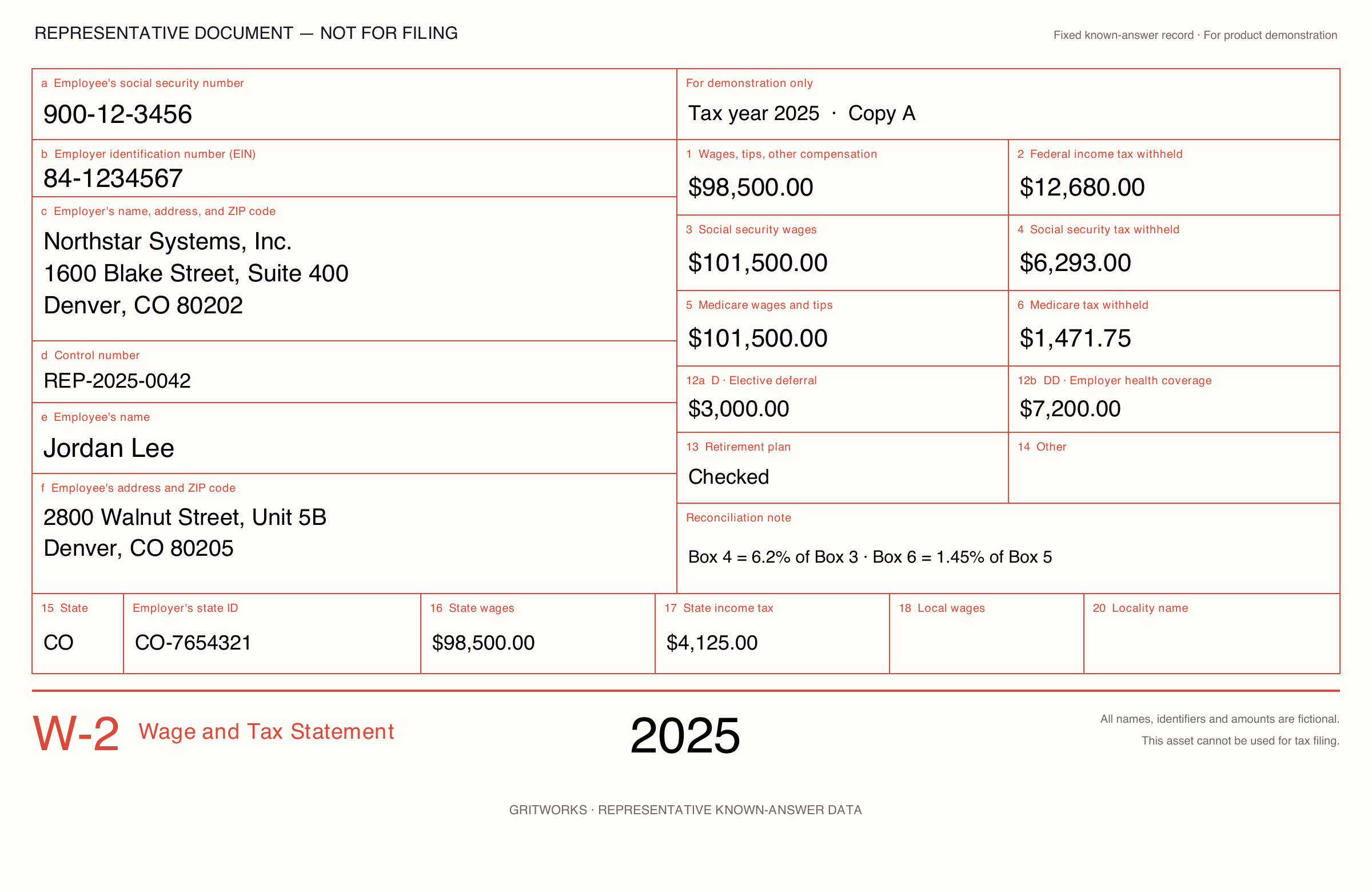
For a tax-document workflow, a schema can request the tax year, employee name, wages and tax withheld. The output gives your application individual fields instead of a document it still has to interpret.

Source document
Fictional W-2 for Jordan Lee, showing tax year 2025 and wages of 98,500 dollars
Illustrative JSON output
{
  "tax_year": "2025",
  "employee": "Jordan Lee",
  "wages": 98500,
  "federal_tax": 12680
}

Illustrative output, not a live extraction. All names and identifiers are fictional. View the example JSON ↗

From review to integration

Use the same configuration in your application.

Once you’ve checked an extraction, save the project and deploy a named endpoint. Use the supplied request examples to connect it to document intake, claims processing, loan operations or another business workflow.

The activity dashboard brings projects, deployments, live endpoints and API call counts into one view, so your team can see what it has deployed and how it is being used.

  • Save extraction settings as reusable projectsReuse
  • Deploy a configuration as a named API endpointIntegrate
  • Start with cURL, Python or Node.js request examplesConnect
  • View deployments, live endpoints and API activityMonitor
Your deployment choice

Run GritTransform offline inside your enterprise environment, or choose a sales-assisted SaaS subscription. Both offer web-based access and API integration.

Bring a representative document, the fields you need and the application that will use them. We’ll help configure the extraction and review it with your team.

Before you get started

Can I give the extraction more context?

Alongside field names, types and descriptions, the configuration offers a JSON schema view and a field for custom instructions. Use these to describe document context, extraction rules and hints that matter to your workflow.

What options help with difficult documents?

Advanced settings include a fast local-model option and a second extraction pass that combines results. You can also request per-field confidence scores and source references. Evaluate these settings against representative documents and expected values to choose the processing time and output detail your workflow needs.

Does flagging PII remove it from the document?

No. Transform can flag potentially sensitive values in its results. Those labels help you spot information that needs attention; they do not redact the source. Use GritRedact when the workflow requires sensitive content to be removed. Transform can also extract from documents already processed by Redact.

How can we evaluate extraction quality?

Compare the returned fields with the source document and your expected values. Source highlighting supports that review. To test more layouts and input conditions, use GritRender to generate document variants with known values.

Do we need to build an integration before trying it?

No. Upload and preview a document, configure fields and inspect the table or JSON output in the web platform first. Deploy the saved configuration as an API endpoint when you’re ready to connect an application.

Start with your workflow

Put your unstructured data to work.

Tell us what your team needs to achieve. We’ll help you choose the right products, work through your requirements and explore on-premises or SaaS deployment.

Request a working session ↗